

How to sign in to APGA PECS and the Knowledgebase
APGA plans to introduce Microsoft sign-in for PECS ANZ, PECS Canada and the Knowledgebase on 1 December 2026. Until the change takes effect, continue signing in as usual.
Once the change is live, open the service you normally use and have your registered email inbox handy. The screens below show a test account. You’ll see your own email address when you sign in.
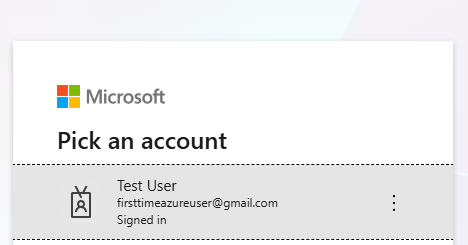
1. Choose your registered account
On the Microsoft Pick an account screen, select the email address registered with APGA for the service you’re opening.
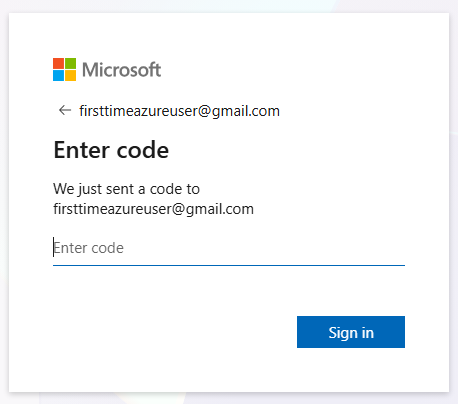
2. Enter the code sent to your email
Microsoft will send a verification code to the address shown on the Enter code screen. Open that inbox, find the code and enter it in the sign-in window.
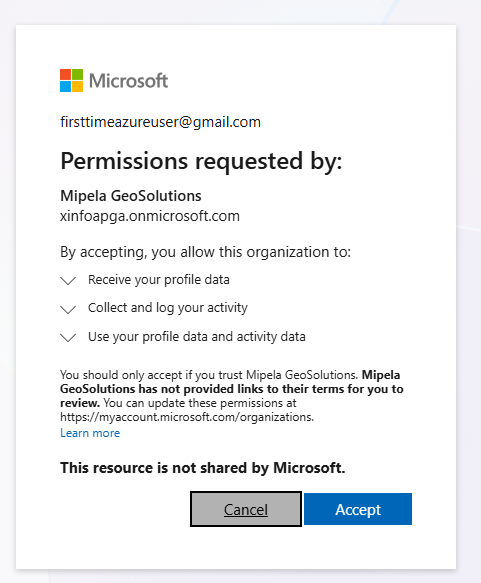
3. Review and accept the permissions
The next screen names Mipela GeoSolutions, which provides the X-Info Connect platform used by these APGA services. Review the listed permissions and select Accept to open your service.
Need help signing in?
If the code hasn’t arrived, check the email address on screen and look in your junk or spam folder. If you no longer have access to that inbox, or you can sign in but can’t see your service, contact the APGA team. Include the service name, your registered email address and the step where you got stuck. Keep your verification code private.